

To expedite the process of assigning insurance to patients, you can enter and change the patient's employer in the Family File. To make the process of assigning an employer easy, a database of employers is compiled. As a result, you will only have to enter employer information once. After you enter the information, you can select the employer from a list.
Note: You can also add employers in the Office Manager.
To assign an employer to a patient
1. Select a patient in the Family File.
2. Double-click the Employer block.
The Employer Information dialog box appears.
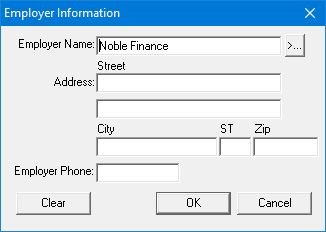
3. Type the first three or four letters of the employer's name in the Employer Name field, and then click the search button.
The Select Employer dialog box appears and displays a list of employers with the first entry that begins with the letters you entered highlighted.
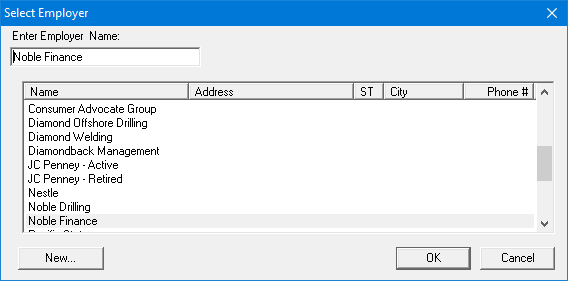
Note: To avoid duplicate employer entries in your database, search for existing employers before adding new ones.
4. Select the patient's employer from the list, and then click OK.
The Employer Information dialog box appears and displays the employer's information. If the patient's employer is not listed, click Cancel to return to the Employer Information dialog box where you can enter the employer's information:
Type the employer name in the Employer Name field.
Type the street address for the employer in the Address fields.
Type the City, State, and Zip Code in the appropriate fields.
Type the employer phone number in the Employer Phone field.
5. Click OK to save the employer information and return to the Family File window.